On All chats click chats in the list to select or unselect them. Then set the options above the list. Below the list, Save to is the folder the backup is written to. The switch at the bottom right chooses Once or Continuous (Auto plan).
Windows desktop app for Telegram backups
Tuck a gem
from Telegram.
Choose several Telegram chats, save their conversations and files to your own Windows computer, and read them later in a tidy local library.
Backs up chats and media that are not protected from saving. The text and files of chats whose owner restricted saving are never saved.
- 01 / Select multiple chats
- 02 / Back up together
- 03 / Read anytime
Simulated preview
Try the workflow.
Explore a browser simulation of the Windows app with fictional chats. Nothing here connects to Telegram or saves anything to your device.
Simulation — not the real app. TuckGem runs only as a Windows desktop app. This interactive sample uses made-up chats and files.
Walk through a fictional sign-in, selecting several chats, starting a backup, reading messages and opening the saved folders.
Your chats
Documents\TuckGem\demo-archiveResumes from the last checkpoint · Excludes Secret Chats and protected content
Check your backup
Make sure what is saved on this computer is complete and readable. Load your chats first; stop any running backup before using a tool.
Opens a report of every saved file: which are fine, which are missing from the folder, and which were changed or damaged since they were saved. Run it before you move or delete anything, or after copying the backup to a new drive. It only checks your own copy, so it cannot tell if Telegram has messages that were never saved.
Builds the reading pages again from the saved data. Use it if a chat looks empty or out of date in the reader, or after you moved the backup folder. It is safe: no message is changed or deleted.
Fix problems
Something was skipped or looks wrong? These tools prepare a second try. Nothing is downloaded until you press Start backup, and files you already have are kept.
Puts files that failed from a temporary problem (network drop, a Telegram limit) back in the queue. Then press Start backup to download them. Files that Telegram protects from saving stay skipped. (A file skipped only because of your file-type or size choices comes back on its own, with no button needed, the moment you widen that choice and start a backup.)
Reads the selected chats again from the newest message back to the very first. Use it after you widen the history or file filters, or if old messages seem to be missing. Versions you already saved are kept, so it is slow but never destructive. Pick the chats in the Chats page first.
Export a chat as a file
Copy one saved chat into a single plain file to open in Notepad or Excel, hand to a lawyer, or use in other programs. Leave the dates empty for the whole chat. "Full data (.jsonl)" writes every saved version of every message with the file status, skip reason and checksum, for technical checks. Your backup is only read, never changed. Pick a chat from the list (it shows chats already saved in the backup folder).
File verification does not confirm every Telegram message was archived.
Activity in this session
Choose a mode
Plan
Download speed
The faster it goes, the more likely Telegram pauses downloads for a while (FloodWait) — pick whichever suits how you use it.
- Safe — ~3 MB/s · 1 file at a time
- Normal (default) — ~10 MB/s · 2 files at a time
- Fast — ~20 MB/s · 3 files at a time
Whenever FloodWait happens, the app slows itself down automatically — no need to adjust anything yourself.
Telegram account
Free at my.telegram.org → API development tools → create an app (any name) → copy the API ID and API hash into the boxes.
Windows encryption protects the saved session. Login codes and 2FA passwords are not saved.
Each account has its own backup folder · Keep your account safe: turn on two-step verification in Telegram and check Settings > Devices now and then
Download queue (bottom right, while a backup runs) lists the files still to download, with tabs for each kind of file. ▲ on a file downloads it first; a file can be cancelled on its own, and Cancel selected and Clear all remove several at once. Clicking a file's name shows its message in the reader.
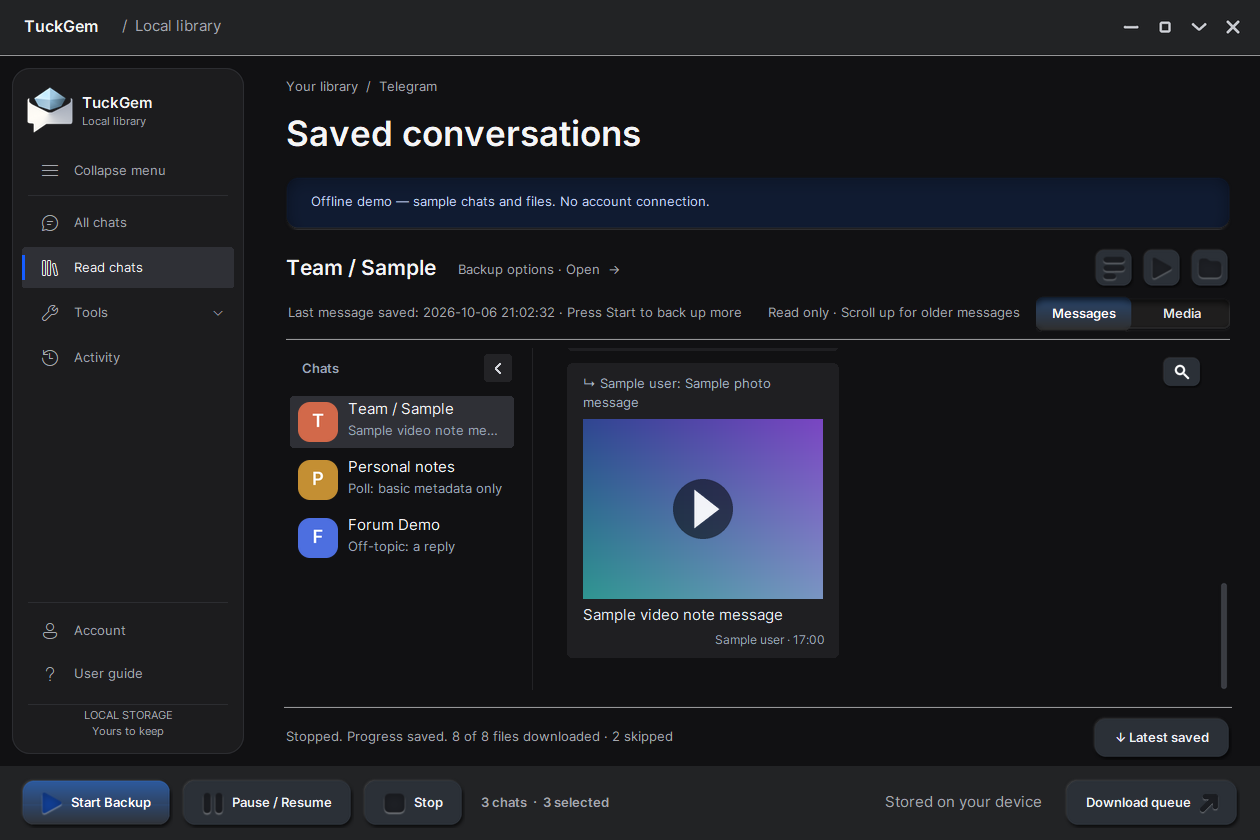
Load Text (Preview) fetches the text of the open chat's latest 200 messages so you can look before backing it up. No full file is downloaded. A file that is not downloaded yet says Click to load: click it to download it first.
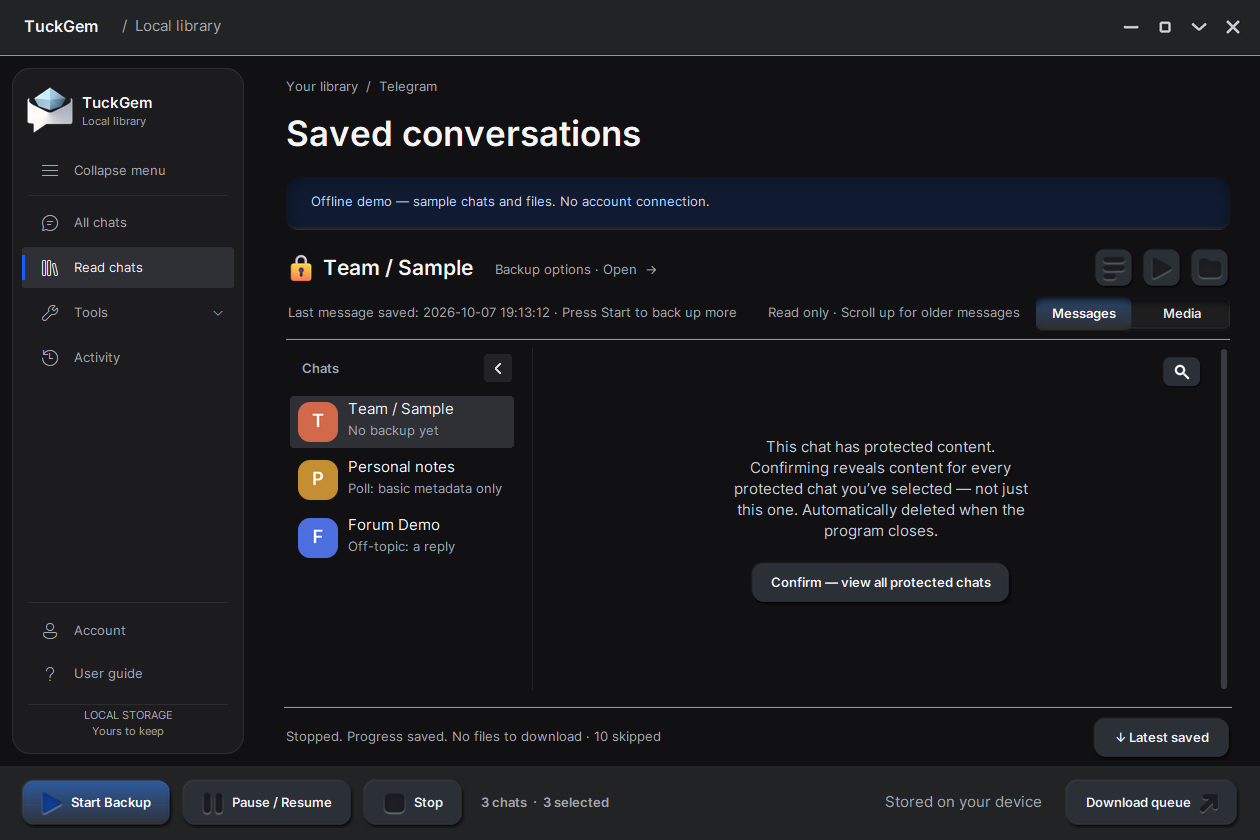
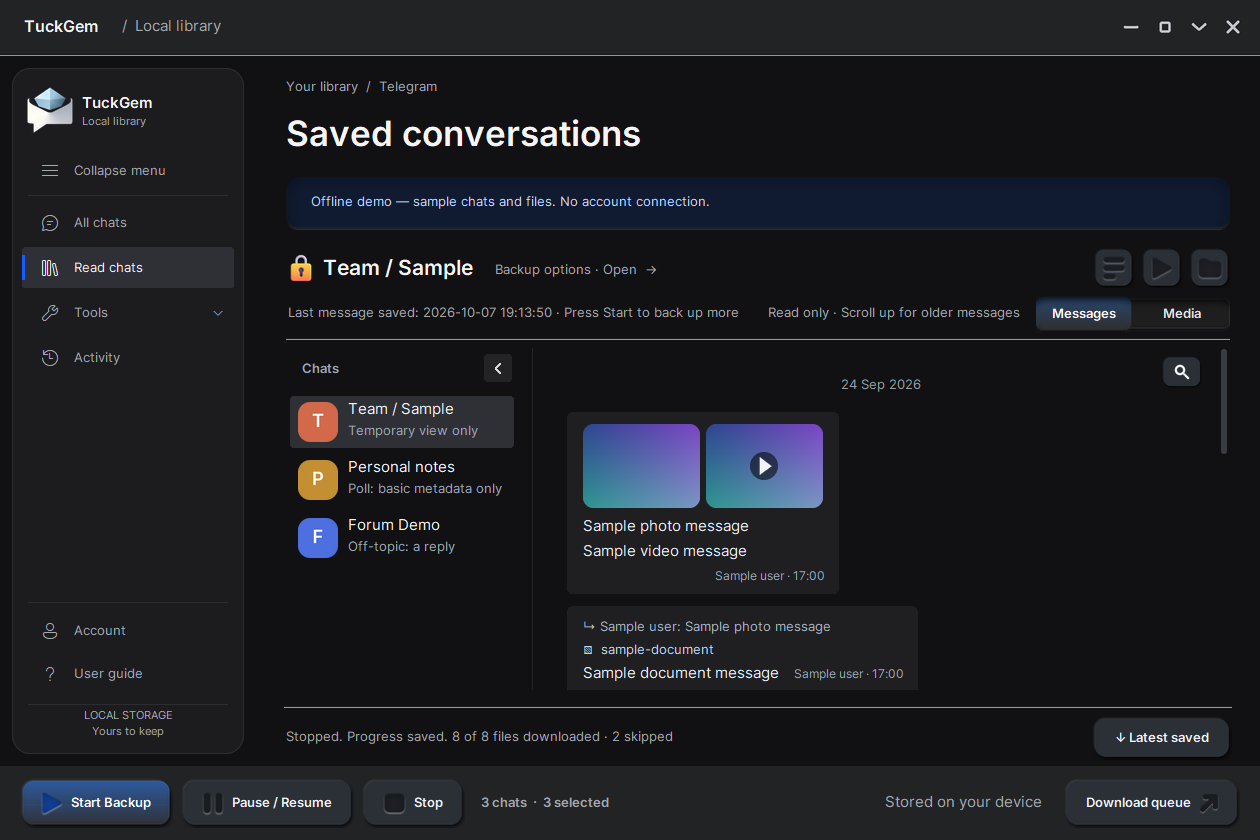
TuckGem never saves that chat's text or files into your backup. If such a chat is part of a backup, only a placeholder is kept for each message (who sent it and when), marked Protected content. What you see after confirming is a temporary view: it is kept apart from your backup and deleted when TuckGem closes.
Fictional files. ▲ downloads a file first; click a name to jump to its message.
demo-archive
0 itemsSimulated File Explorer with fictional files. The Windows app opens the real File Explorer.
Simulated sample based on TuckGem 0.5.0 — not the real app. Progress, chats and files are fictional; the desktop app's real behaviour depends on Telegram, each chat's content settings and your computer.
Made for the work that lives in chat
From a message
to a library.
Choose what matters
Select the conversations to save, and decide which file types and sizes belong in your archive.
Keep the context
Messages and attachments stay together in a local backup that can continue from its last checkpoint.
Return to the work
Read saved conversations in the app, then open a chat's own folder, where downloaded files are organised by media type.
New · Media page
See a chat's media without scrolling the chat.
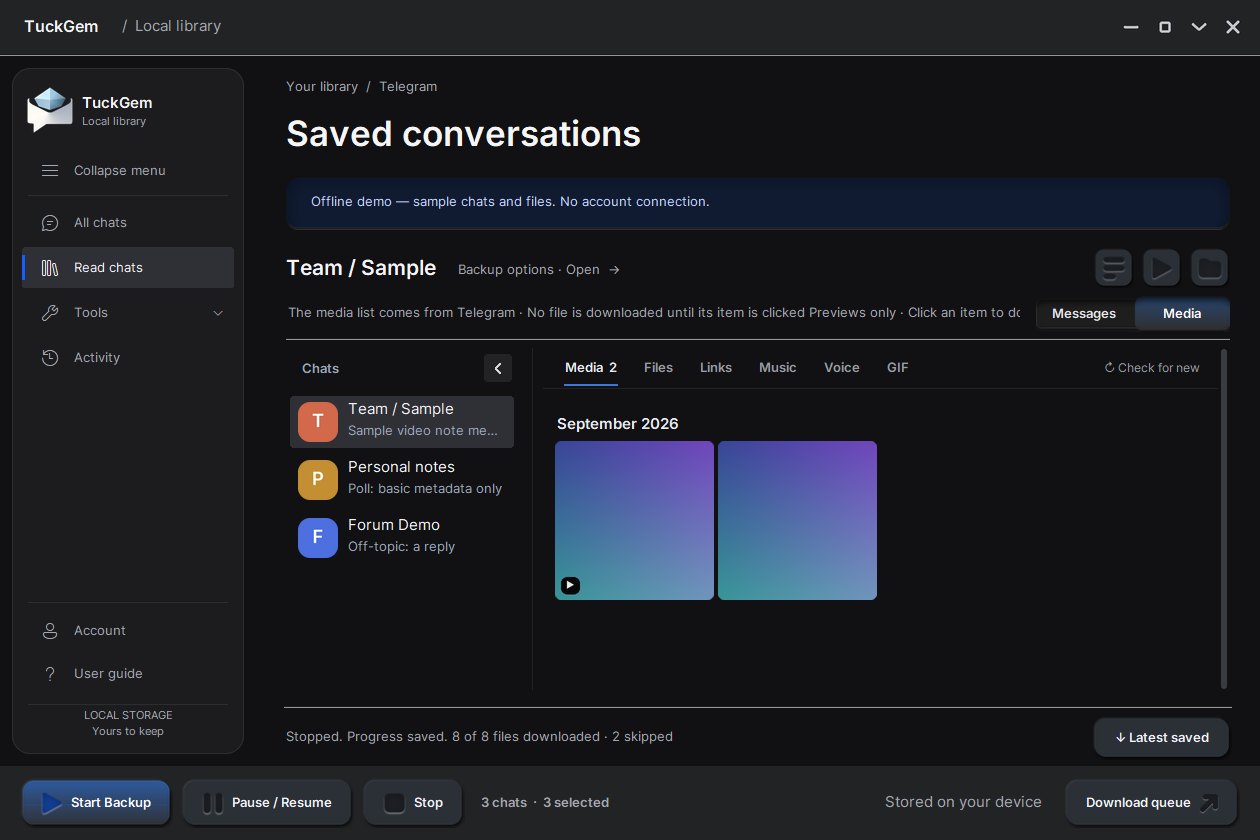
In Read chats, switch from Messages to Media to browse everything a chat has shared — without scrolling through it or loading its messages first.
- Six tabs — Media, Files, Links, Music, Voice and GIF.
- Grouped by month. Photos and GIFs show as a grid; videos show their length in the corner.
- Previews first. A full file downloads only when you click it; click again to open it.
- Links open in your browser with a click; right-click to copy.
- Works inside a forum group's topics — you see the media of the topic you have open.
- Loads by itself on both plans.
Also in this version
- Flags and emoji in chat names show as real images.
- Videos without a Telegram preview show their first frame.
- Read chats scrolls continuously, like a normal chat.
- A file that failed to download can be retried with a click.
- Backup options now list 7 file types, with GIFs and voice messages as their own choices.
What TuckGem can save
Only what Telegram lets you save.
TuckGem works through your own Telegram account and respects each chat's content settings. It doesn't bypass or work around Telegram's protections.
- Backed upChats, messages and media that are not protected from forwarding or saving.
- Protected chatsContent whose owner turned on Telegram's “Restrict saving content”. Its text and files are never saved to your backup. If such a chat is part of a backup, only a placeholder for each message (who sent it and when) is kept, marked “Protected content”. The Media page asks Telegram for nothing in such a chat until you confirm; what you then see is a temporary view, cleared when the app closes.
- Secret ChatsNot supported. A Secret Chat exists only on the devices taking part in it, so TuckGem can't view it or back it up.
- PlatformWindows desktop app only — not a web app or mobile app.
A real use case
The client sends twenty files after midnight.
In the morning, the brief, revisions and assets are spread across a busy Telegram thread. TuckGem lets you save the conversation, read the decisions, and open that chat's folder to find its documents, videos and other files by type.
Simple plans
Choose your rhythm.
Both plans handle daily backups, several chats at once, saved presets and the media page. The difference is in messages: with Manual you press Start each time; Auto loads new and missing messages by itself while TuckGem is open.
Know when you need to back up and happy to press Start yourself?Choose Manual
Need to follow several chats continuously and check back later?Choose Auto
Back up on your schedule.
For work with a clear rhythm — back up after work, after a meeting, or once a day. Save your chats and options as a preset just like Auto, then pick it and press Start when it's time. No need to set everything up again each day.
Great for
- Daily backups at a time you choose
- Backing up after work or after an event
- Work with a clear start and end
- Keeping documents or conversations in rounds
- People who like to check options before every run
Save a preset, then start your backup when it's time.
Buy ManualKeeps up with busy chats.
For chats with frequent new or edited messages. Select several chats, leave TuckGem running, and review what was saved when you come back — for example, a promotions channel that posts images and edits its promo codes when they expire. Includes everything in Manual, without starting each round yourself.
Great for
- Team chats that change throughout the day
- Messages that are edited or updated often
- Following several chats at once
- Customer service and document exchange
- Leaving it running and checking back later
Pick the chats that matter and let TuckGem follow them while it's open.
Buy Auto| Feature | Manual $19.99 | Auto $35.99 |
|---|---|---|
| Starting a backup | You press Start yourself | Press Start once — it keeps following your chats |
| Presets | Save chat sets and options | Save chat sets and options |
| Several chats at once | Supported | Supported |
| Media page | Loads by itself — media, files, links, music, voice and GIFs | Loads by itself — media, files, links, music, voice and GIFs |
| Daily backups | Easy when you know your schedule | Runs continuously — no need to come back and press Start |
| New messages | Loaded when you press Start | Latest and missing messages load by themselves while TuckGem is open |
| Edited messages | Checked at the start of each backup run | Followed as they change — suits chats that are edited often |
| Best for | Work in rounds, with set backup times | Ongoing work and several busy chats |
Limits for both plans
- Windows only.
- Data is saved on your own computer.
- Secret Chats are not supported: they can't be viewed or backed up.
- Content with Telegram's “Restrict saving content” turned on can't be backed up permanently. You can still view it temporarily, and it is deleted when TuckGem closes.
- Messages Telegram deleted before TuckGem saved them can't be recovered.
- Auto works while TuckGem is open and connected to Telegram.
One-time purchase, no subscription. Payments are processed securely by Stripe. See Terms, Refund policy and Privacy.
Stay in the loop
Have a question
about TuckGem?
Tell us what you need to preserve, and we'll help you pick the right plan. You can also write to [email protected].